Access Control
dbt Charts Cloud
This page describes dbt Charts Cloud, the hosted
product — these features are not part of the open source dct
engine.
dbt Charts Cloud governs who can see and edit dashboards the same way you already think about shared folders: where a dashboard lives decides who can see it, unless a more specific rule says otherwise. Sharing a folder shares everything in it; sharing one dashboard inside that folder narrows or widens access for that dashboard alone.
All access changes happen in Cloud, never in git. A dashboard's YAML never
carries a permission field, and no _cloud.yaml or similar file records who
can see it. Cloud is the single source of truth for access, and its admin
surface and audit trail are where you go to read or change it.
The filesystem mental model
Think of your project like a shared drive:
Grant the finance team access to the finance/ folder, and every dashboard
inside it (present and future) is visible to them. Move
quarterly_summary.yaml into public-reports/, and it picks up that folder's
access, the same way moving a file into a different Drive folder changes who
can open it.
The key Cloud binds access to is a dashboard's path: its file location
relative to the project root, with the file suffix stripped
(finance/revenue_exec, not finance/revenue_exec.yaml). Folders are keyed
with a trailing slash (finance/). The branch a dashboard happens to live on
is never part of that key; access to a path is the same whether you're
looking at the trunk branch or a preview of a feature branch.
Longest-prefix resolution
A dashboard's effective access is resolved by walking from the broadest scope to the most specific:
- The project's default access: the broadest scope, what everything in the project inherits absent a more specific rule
- Each directory the dashboard's path passes through, outermost to innermost
- The dashboard's own exact path, if it has a specific grant
Each more specific scope either replaces the access inherited from above it, or adds to it; that's a choice you make when you grant access at a given path, not a fixed rule. "Share this folder with Alice in addition to whoever can already see it" and "restrict this one dashboard to Alice only" are both ordinary grants; they just differ in whether they inherit from the parent.
Because resolution is purely path-based, a new dashboard needs no setup to
have sensible access: drop it in finance/ and it inherits finance/'s
access immediately. Nothing needs reconciling.
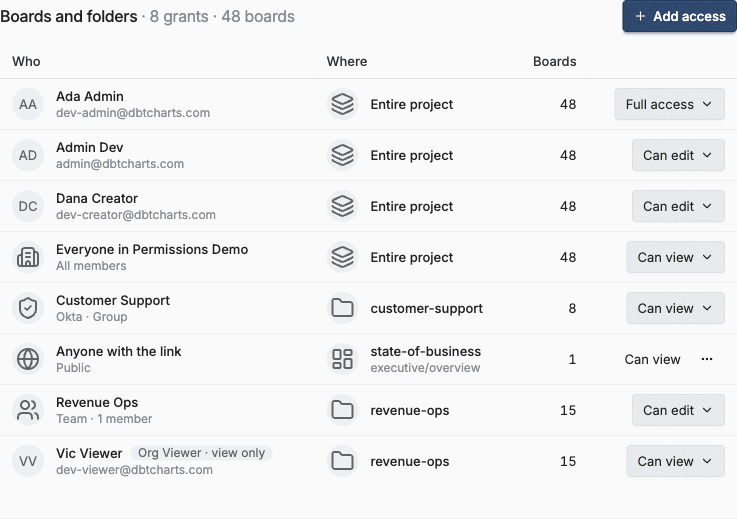
Settings → Access → Grants shows exactly this, path by path. The picker at the top starts at Everything. Open it and drill from a project to a folder to a board; you can pick any of them, and the page lists everyone who can open that place: the grants made there first, then the ones inherited from the folders above. An inherited row carries a quiet "from folder" tag that links to the folder, because you edit it there. Remove it here and the path stops inheriting that grant: the row stays in the list, marked "Removed here", with "No access" beside it and an Undo button.
A folder or board also has an Inheritance line. Stop inheriting keeps everyone who can open the place today and cuts it off from later changes to its parent folders; Restore inheritance lets it follow them again.
A board's own settings panel shows the same list for that board under Who has access, with the same role, Remove, and Undo controls, and a link in its header to the board in Grants. It has no inheritance control; that lives on the Grants page.
Under the list, General access is one line with three choices:
- Restricted: only the people listed can open it.
- Everyone in the organization: every member can view it.
- Anyone with the link: anyone can view it, signed in or not, and a Copy link button appears. This follows the public access switches: while the organization's or the project's switch is off, the choice is unavailable and the line says which switch to change, with a link to it.
The Add people or teams field at the top lists your teams and identity groups when you focus it and searches people as you type; pick one, choose a role, and select Add.
Seeing every grant
With Everything picked, Settings → Access → Grants is one full-height
table of every path grant in your organization, with a sticky header. Each row
shows who holds the grant, the place it applies to, and the role. A folder reads
as its full path ending in /*, a board as its full path with the folders
muted, and the project root as "Entire project"; the project name sits beneath.
A folder or project grant shows how many boards it covers, and the count links
to the folder. A place that stops inheriting carries a "Doesn't inherit" badge.
The role carries an icon: an eye for Can view, a pencil for Can edit, a shield
for Full access.
The header holds the Public links switch, which turns the organization's public access on or off; turning it off asks first and says how many boards stop being reachable by anyone with the link.
The toolbar filters by role or to public grants only (the globe, "Show public only"). Filters are part of the page's address, so a filtered view is a link you can share with another admin. Typing a person or team in the search offers their member or team page; an identity group filters this page.
A grant that does not take full effect stays in the list with its limit spelled out: an Editor grant held by an organization Viewer reads "Can view" with an "Org Viewer · view only" badge beside it, and a public grant reads "No access" with a "Public access is off for this organization" badge while public access is off. An organization Viewer is never offered a role above Viewer.
Change a role in place from its dropdown, remove a grant from its row, or use Add access to grant a person, team, or identity group a role on a project, folder, or board. Only organization admins can open Grants.
Connections are not on this page: the Connections list in settings has a Who can query column for each warehouse connection. See Who can query a connection.
Check who can open a board
The Check access page answers "can Sam open finance/q3-close, and why?"
without working it out by hand. Open it from the button on Grants, a
member's page, or a team's page; the person or place you were looking at is
already filled in. Choose who (an email, a team, or an identity group) and a
board or folder, or paste a board's address, then select Check. The values
are part of the page's address, so a result is a link you can share with
another admin. The page only reports; it changes nothing.
The answer is one sentence, such as "Vic Viewer can view revenue-ops/*". When
an organization role limits a grant, a line says so: "They have Can edit there,
but their org role is Viewer, so it counts as view." Access comes from lists
each grant that reaches the person: its role, where it is bound, and how it
arrives (directly, via Everyone in the organization, via a team, or via an
identity group), with a link to open it. If a folder on the way down stopped
inheriting, one more sentence says which, because grants on its parent folders
do not reach it.
A denial offers Give access, which opens the place in Grants. A path inside a draft is private to the person who owns the draft. Organization admins do not bypass board grants, so checking an admin is a real question.
Checking a team or identity group answers for the group as a whole and counts its members by outcome, such as "7 of 9 members can edit; 2 are org Viewers and can only view".
Roles as entitlement atoms
Access grants pair a principal (who) with a role (what) at a path:
- Principals: an individual, a group, a group synced in from your identity provider, everyone authenticated in your organization, or "everyone" (anyone outside your organization, signed in or not; see Public access below).
- Roles are built from a small set of underlying capabilities: viewing a dashboard, editing it (which covers creating, saving, promoting, moving, and deleting), triggering a refresh, managing who else has access at a path, managing data source connections, and browsing raw data directly. The built-in roles are Viewer (view only), Editor (view, edit, refresh), and Admin (view, edit, refresh, and manage access), and custom roles can be composed from the same underlying capabilities for finer-grained needs.
Being able to create dashboards in a folder is just holding an Editor-level grant there; there's no separate "creator" concept. Whoever can edit a path can also create new dashboards under it.
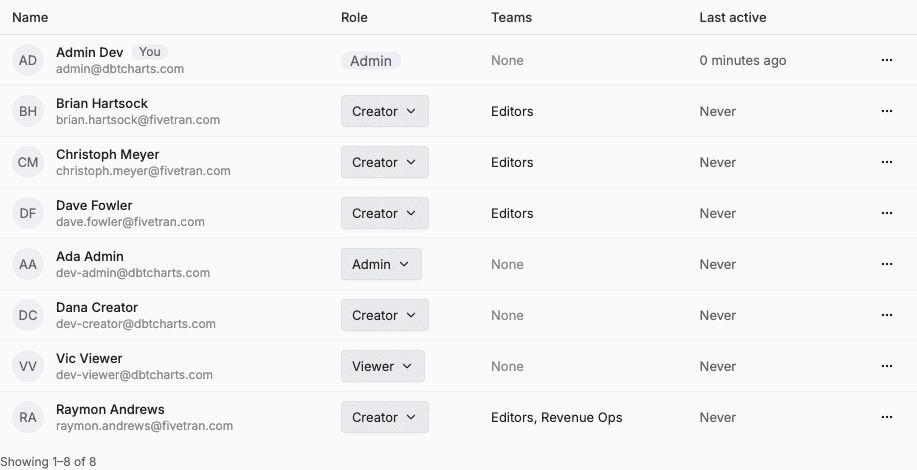
Membership in your organization is a separate axis from dashboard access: being a member doesn't automatically grant view or edit rights to any dashboard. Organization-wide visibility is an explicit grant ("every member can view this project"), not an implicit consequence of joining. The Members page manages that first axis: who belongs to the organization, and at what organization role, which is a different list from any one path's access grants:
Org admins can click any name to open that person's member page, one scrolling profile. The header shows their photo or initials, name, email, organization role, join date, and when they were last active. The role is a menu that changes it in one request, with one line on what each role allows (not on your own page), and the menu beside it removes them from the organization. A row of counts shows the boards they can open, their grants, their teams, and the connections they can query. An organization Viewer's page carries one banner saying what the role limits. Sections follow:
- Teams shows their teams as chips you can remove, an Add to team menu, and any identity groups synced from your identity provider, read-only with the provider and when it last synced.
- Grants has Check access with the person filled in and Add access. It lists every path and connection grant that reaches them in one table, including grants made to a team, an identity group, or all members; those are read-only and link to the team or group that holds them. A connection grant shows the database icon and the connection's name. Below it, the boards they can open appear as a count per folder that links to the folder, never as a list of boards. When their grants reach more boards than they can open, the page says why, such as two boards under a folder that does not inherit.
- Activity shows the audit trail for changes to their access, including through teams and groups, and for changes they made.
A team's page puts a compact members list beside the team's Grants on wide screens, with its activity below. Non-admins keep the members list and never see the Grants or activity.
The Members page is one scroll. An add row at the top takes emails, a role, and teams; below it the table lists a person's name and email together, their role as a menu that changes it in one request, their teams, and when they were last active, with a button at the end of each row to remove them. Your own row is tagged "You" and has no remove button. Pending invitations follow the table, and appear only when there are any.
Public access: org and project opt-in
Public access has no per-dashboard flag. It's the same mechanism as any other grant: the "everyone" principal gets a Viewer role at a path, and anyone outside the organization (logged out, or signed in to another organization) resolves as that principal. Signed-in visitors from other organizations can only ever view, whatever role the grant carries. A public grant is view-only for logged-out visitors too, and Cloud rejects any role beyond view for the "everyone" principal.
Because any path is one grant away from being reachable by anyone, public access is additionally gated by two independent switches, both off by default:
- An organization-level switch: the outer gate. Off means no project in the organization can serve anything publicly, no matter what any project or dashboard is configured to do.
- A project-level switch: the inner gate. Off means that project serves nothing publicly, even when the organization allows it.
Both must be on, in addition to an everyone-principal grant on the path, for a dashboard to actually be reachable without logging in. This makes a strict, nothing-is-public posture the default, and turning on public access a deliberate act at each level rather than something that happens by accident. Cloud also won't let you add a new public grant on a path while either switch is off; you can't opt a dashboard into public access the gates don't yet allow. Either switch is an instant kill switch: turn one off and every path under it stops being served publicly, no matter what grants exist. Those grants aren't deleted; they're held inert while the switch is off, and flip the switch back on and they apply again with nothing to re-create.
A repository can also switch public access off for its own project with
cloud.allow_public: false in dbt_charts.yml (see
Cloud settings). That behaves like a
third switch that can only be turned off from the file: the settings page says
when it is the one holding public links off.
The admin surface makes this auditable. The Public links switch in the Grants header is the organization switch, and the globe filter ("Show public only") lists every public grant across the organization's projects in the same table. Remove a row to make that board or folder private. A public grant that is switched off by a gate stays in the list, reading "No access", with the reason.
A project's General settings hold its own switch and separately list, read-only, which dashboards its grants would expose publicly, regardless of whether that project's own gate happens to be open or closed at the moment, so a grant made while the gate is closed is never a blind spot once someone flips it back on:

Flipping either switch is itself recorded in the audit trail, at whichever level was toggled.
Public boards run queries against the organization's connection when a visitor picks a filter value nobody has asked for yet. Opening a board that already has a saved render, or choosing a value that has one, costs nothing. To bound the rest, heavy filter traffic from one anonymous address on one board is paused briefly. While paused, the visitor sees the saved render for the same filter values if one exists, otherwise just a notice that live filters are paused, until the pause passes. Signed-in visitors are never paused, and refreshing a board is not available to signed-out visitors at all.
Reading the audit trail
Settings → Access → Audit lists every access change, newest first under a heading for each day. Each row shows the time, the Actor, where the change came from (UI, Git, or System), and a sentence about what changed, with boards and folders named and linked to who has access there:
- Made finance public (Viewer)
- Restricted finance/q3 to Sam, Data team (stopped inheriting from finance)
Changes made in one request are one row you can expand. A "Git" row is a board moved outside dbt Charts, where Cloud found its grants no longer applied. Bookkeeping rows for newly created access records are not shown.
The toolbar searches (actor: and where: narrow the search), and filters by
date, actor, kind of change, source, and project, or to public changes only.
Export downloads the filtered trail as CSV or JSON; an export over 10,000
events asks you to narrow the filters. On a member's page, Activity shows the
same trail filtered to that person. The cloud_access audit command prints the
same sentences, with --all for the bookkeeping rows.
Reading a board with a CLI token
The token dct cloud login stores is not only an API credential: it reads
board pages too, so the tool that publishes a board (or a CI job, or an agent)
can fetch the board it just published instead of handing a URL to a person.
Send it as an ordinary bearer header:
The token authenticates; it grants nothing. The board's own access rules decide exactly as they do for that person in a browser, so a token cannot reach a board its owner cannot reach. Three further limits apply:
- Read only.
GETandHEADon board-viewing URLs. This covers the board page, its snapshot pages, its.svg/.png/.pdfexports, and the render artifacts the page embeds. Every editing, renaming, refreshing, or variable-setting URL refuses a token, whatever its scope. - The
dashboards:readscope. A token issued without it reads nothing, even for a user who has full access. A token's scope can narrow what its owner can do and can never widen it. - The organizations it was approved for. Approving
dct cloud loginor a connector checks one or more organizations; the token reads boards in those organizations only, even if its owner belongs to others.
One endpoint is deliberately outside this: the poll a board page uses while a
render is still in flight answers to signed-in browser sessions only. Wait
until dct cloud boards reports that board ready, and the completed board
and its artifacts are readable.
A token that is expired, revoked, unrecognized, or not approved for that organization is not reported as a bad token. The response is exactly what an anonymous request to that URL gets, because telling the two apart would let anyone map which boards exist.
Drafts
A draft dashboard lives in a private working area, visible only to the person who created it; no grant or public setting on the rest of the project reaches into it. Promoting it to a destination path re-checks access at that moment: the person promoting must be allowed to edit the destination, or it stays a draft. Once promoted, it takes on that path's access like any other dashboard living there.
Related
- Administer access from the CLI: the same
grants, checks, and audit log as
dct cloudverbs - Refresh: who can trigger a refresh follows the same path-based access model
- Boards: the dashboards this access model governs