Data Connections
dbt Charts Cloud
This page describes dbt Charts Cloud, the hosted
product — these features are not part of the open source dct
engine.
Dashboards never embed credentials; YAML names a source (source:
warehouse) and Cloud resolves the name to a connection: warehouse
credentials stored once at the organization level and shared across the
org's projects. Only org admins manage connections.
Supported warehouses
dbt Charts only reads, so the credential you provide should be a read-only one, not the credential your dbt project builds with. See warehouse privileges for how to create one and grant it access.
| Type | You provide |
|---|---|
| PostgreSQL | Host, database, username, password. Optional: port (5432 when blank), schema (public when blank). SSL is required by default. |
| Redshift | Host, database, username, password. Optional: port (5439 when blank), schema (public when blank). |
| Snowflake | Account, warehouse, database, username, and one credential: a key-pair (recommended), a programmatic access token, or a password (deprecated; Snowflake is retiring password sign-in). Optional: schema (PUBLIC when blank). Snowflake only accepts an access token from a user with a network policy, which must allow Cloud's egress IPs. |
| BigQuery | The service-account JSON key file: drop it on the form and the project fills itself in. List datasets shows the datasets that key can read, then pick one. The dataset's location is read from BigQuery, never typed. |
| Databricks | Host, the SQL warehouse's HTTP path, catalog, and either a service principal (client ID and client secret, recommended) or a personal access token. Optional: schema. The principal needs CAN USE on the SQL warehouse; use a service principal when your admins have turned tokens off. The catalog is the Unity Catalog catalog your tables live in: List catalogs shows the ones the credentials can see, or browse Catalog Explorer in your workspace. The credential needs USE CATALOG on the catalog; the connection test checks it. |
| Trino | Coordinator host, catalog, schema, and username. Optional: port (443 with SSL, 8080 without) and a password (LDAP) or a JWT. Works with Starburst too. A password or token is only sent over HTTPS, so Require SSL must stay on when one is set. |
Network access
Cloud queries your warehouse over the public internet, from one fixed address. The warehouse has to be reachable from there: a host on a private or internal network address is rejected when you save, and a warehouse reachable only through a VPN, a private endpoint, or an SSH tunnel cannot be reached at all.
If your warehouse restricts inbound traffic by address, allow:
Every query dbt Charts runs leaves from that address, so one rule covers every connection in your organization.
Where the rule goes depends on the warehouse:
| Warehouse | Where to add it |
|---|---|
| PostgreSQL | Your provider's allowlist (Cloud SQL authorized networks, an RDS inbound security-group rule, an Azure firewall rule), and a pg_hba.conf entry as well if the server restricts by client address. |
| Redshift | The cluster's security group, inbound on the port you connect to. The cluster also has to be publicly accessible. |
| Snowflake | A network policy: add the address to its ALLOWED_IP_LIST. |
| BigQuery | Nothing. BigQuery grants access through IAM rather than by address, so there is no inbound allowlist to edit. The one exception is a VPC Service Controls perimeter around the dataset, where the address belongs in an access level. |
| Databricks | The workspace's IP access list, not a cluster security group. This applies to serverless SQL warehouses too, since the connection targets the workspace URL rather than the warehouse's own compute. |
| Trino | Whatever fronts the coordinator: its load balancer's or security group's inbound rules for the coordinator port. |
Allowing the address lets our traffic reach your warehouse; it does not authenticate it. The credential does that, so keep it scoped; see warehouse privileges.
Testing and saving
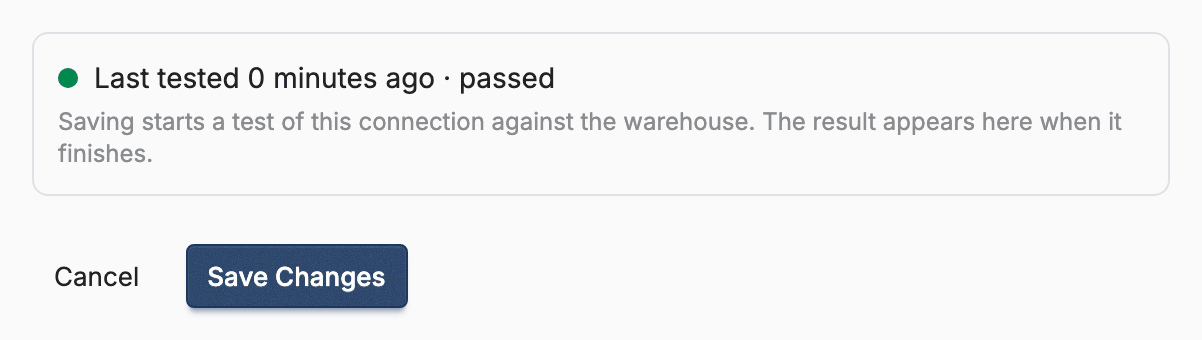
There is no separate test step. Save is the only action on the form, and saving starts a test of the credentials against the warehouse in the background. The page returns at once with the connection saved; the status block beneath the form reads "Testing…" and updates in place when the result lands, with no reload. The block always shows the connection's most recent test: "Not tested yet" before the first one, "Testing…" while one runs, and otherwise when it finished and whether it passed. A failure also shows the warehouse's own error beneath the form.
One case is neither pass nor fail. If the check cannot finish in time, the warehouse may still be starting up, so nothing was proved either way: the connection saves without recording a failure that never happened, and the block says the test did not finish. Re-check it once the warehouse is up.
The form keeps a failed connection because editing it here is one field and one
click. dct cloud connection create
has no edit verb, so it does the opposite: a test that fails outright saves
nothing, and the retry is the same command once you have fixed whatever the
printed error names. A test
that could not finish in time is the exception. The warehouse may still be
starting up, so nothing was disproved and the connection is kept. Re-run the
check with dct cloud connection test <slug> rather than the create command,
which would collide with the slug already taken.
To re-run the check on a saved connection, save it again (leaving a secret field blank keeps the stored value), or use Re-check readability on the connection's page, which re-runs the same authentication check.
Who can query a connection
A new connection is queryable by every member whose organization role allows querying. This is the organization default, and it starts as Editor. Viewers never query a connection directly.
An admin can change the default's role or set it to No access. With No access, only organization admins and principals with their own grant can query the connection.
Grants to individual people or teams work independently of the default. Manage them in the Permissions card on the connection's page, or see every connection's grants in one place under Settings → Access → Who has access, in its Connections section. Filter that table by person, team, identity group, or role to answer "who can query the warehouse?" or to review what someone can reach before they leave. The same table, filtered to one person, is the Connections section of their page under Settings → Members.
Organization admins can manage every connection whatever the grants say. A grant to an organization Viewer reads "No access" with an "Org Viewer · cannot query connections" badge, because Viewers cannot query connections. A grant to someone who has since left the organization is marked "Not a member": it still applies, and you can remove it but not change its role.
Mapping sources
Cloud reads the source names your project's dbt_charts.yml declares on your
project's working branch, the branch Cloud edits and renders from. That file
is the declaration, and it is the only place Cloud looks. A name a board
writes as source: warehouse is a reference to a declaration, not one itself:
if dbt_charts.yml never declares it, it appears nowhere on this page and
every chart that uses it fails to compile, with the error pointing back here.
Each declared name that names a warehouse starts unmapped; queries against
it can't run until an admin maps it to a connection. csv, json and
parquet sources are never unmapped — they read files already in your repo,
so there is nothing to connect them to. When you create a connection you can
map pending sources to it in the same step, and a mapping can override the
schema per source when one project needs a different schema than the
connection's default.
Declarations live in git and mappings live in Cloud, so the two move on different clocks: a source appears here as soon as it lands on the working branch, and the connection you pick for it belongs to the project, not to the branch: it stays picked once that branch merges.
A warehouse source's credential fields in dbt_charts.yml (password:,
keyfile:, or an env_var() standing in for one) are for rendering locally.
Cloud ignores them; the connection you map here is what a render uses.
The project's default source is also the one ref() and source() resolve
against: Cloud lists its tables to link each dbt model to its production relation
(how it resolves). Its credentials must be
able to list tables in the schemas your production dbt run builds into; a source
that cannot is recorded as a failed index build and ref() charts keep failing
until it can.
Mapping, re-mapping or unmapping a source re-renders the project's boards: a
render resolves its sources when it runs, so every render made before the
change is stale. A project's first render happens at sync, before anything is
mapped, and its boards show ERR-SOURCE-NOT-FOUND until the mapping lands
and that re-render completes. To re-render on demand, a project admin
runs dct cloud render --force.
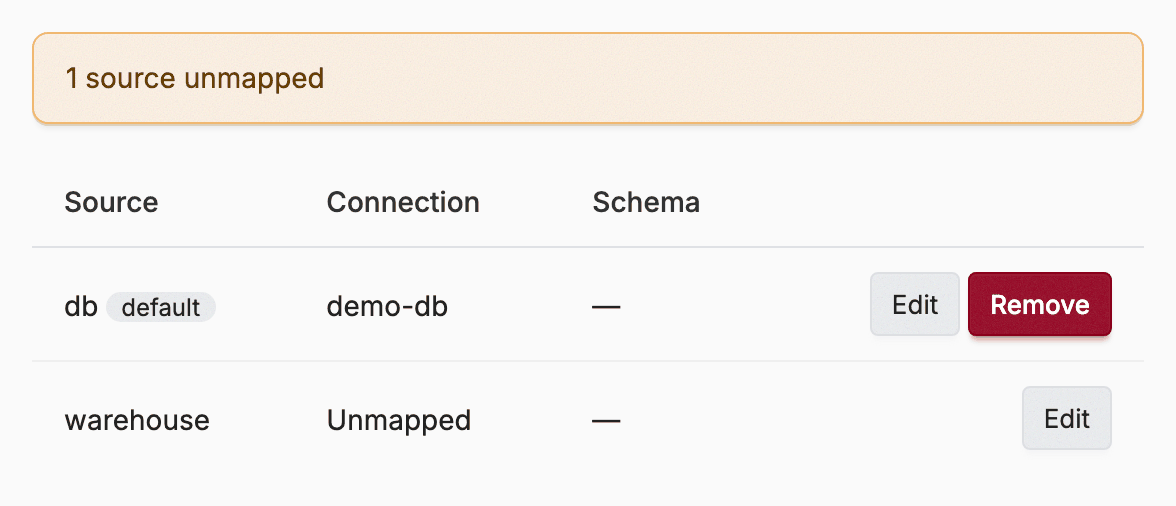
Because connections are org-level and mappings are per-project, two projects can point the same source name at different warehouses, or share one connection.
Pre-filling from dbt profiles
If the repo has a committed dbt profiles.yml, Cloud uses it to pre-fill
the non-secret fields of a new connection: host, database, project,
dataset, and so on. Credentials are never read from the repository; secrets
are always entered directly in Cloud.
How credentials are handled
- Credentials are encrypted at rest.
- Secrets are write-only: passwords and keys are never displayed back, and leaving a secret field blank when editing keeps the stored value.
- Connection management requires the org Admin role; which dashboards a member can query is governed separately by access control.
- How much the credential can reach is up to you: warehouse privileges covers granting it read access to the tables your boards need, and nothing else.
Related
- Warehouse privileges: creating a read-only role and granting it access
- Getting started: the full setup flow
- Sources: how the open source engine defines and uses sources in YAML