Getting Started
dbt Charts Cloud
This page describes dbt Charts Cloud, the hosted
product — these features are not part of the open source dct
engine.
Setting up dbt Charts Cloud takes three steps: connect the git repository that holds your dbt Charts project, create a project pointing at it, and connect your warehouse. At the end, every dashboard in your repo is live, shared, and updating on every push.
The easy way: hand this to your coding agent
The fastest path to a live board is to paste this into the coding agent
you're already using in this repository and let it drive the setup end to
end. The cloud-setup skill it reads carries every step; the prompt names it
and grants the two permissions the setup needs, so the agent doesn't stop
to ask for them halfway.
Publish this repository's boards to dbtcharts.com with dbt Charts. You may
push dbt Charts files to this repository's default branch and create a
read-only warehouse credential for dbt Charts Cloud.
Start with: uv tool install dbt-charts && dct skills cloud-setup
(the install takes a few minutes: give it a long timeout rather than retrying)
The agent needs you in the browser once. It runs dct cloud login, which
prints a code and a URL: sign in (or create an account), pick or create the
organization the CLI should reach, and approve. Right after, unless the
repository is public, it hands you a link to install the GitHub App and
pick the repository; the page after the pick tells you to go back to the
terminal, and there is nothing else to press. Everything else — connecting
the project, wiring up the warehouse, mapping sources, rendering — the agent
does itself, serving the boards locally so you can watch as it goes.
Prefer doing it by hand? The manual steps below are the same flow, walked through in the UI.
Everything here from the terminal. Each step below is also a
dct cloud verb. To script the setup yourself, or to see
exactly what the agent runs, follow
Automating setup.
Before you start you need:
- A git repository containing a dbt Charts project: a
dbt_charts.ymland acharts/directory of dashboards. If you don't have one yet, build it locally first with the open source engine: see Installation and the Quick Guide. - A warehouse that Cloud can reach over the internet (see Data connections), unless your boards only read file sources.
Sign in and create an organization
Sign up with an email address and password, or with Google or GitHub sign-in where offered (social sign-in is used only to authenticate you; it does not grant Cloud access to your repositories).
Everything in Cloud belongs to an organization: members, projects, and warehouse connections are all org-scoped. Create one with a name and a URL slug, and you become its admin. Invite teammates by email; each invitation is a single-use link that expires after seven days. Members hold one of three org roles:
- Admin: manages members, the git connection, and warehouse connections. An org always keeps at least one.
- Creator: uses and builds projects and dashboards, subject to access control. This is the default for a new invitation.
- Viewer: read-only. Access control still decides which dashboards they see, but a Viewer's grants are capped to view-only capabilities, so no grant can give them edit rights.
Connect your git repository
Cloud reads dashboards straight from git; the repository stays the source of
truth. A repository can be on GitHub, on gitlab.com, on bitbucket.org, or on any
other host that serves plain HTTPS git. There are five ways to connect one. From
the terminal, each is a dct cloud project connect subcommand named for its host
(github, gitlab, bitbucket, git); see the
CLI reference.
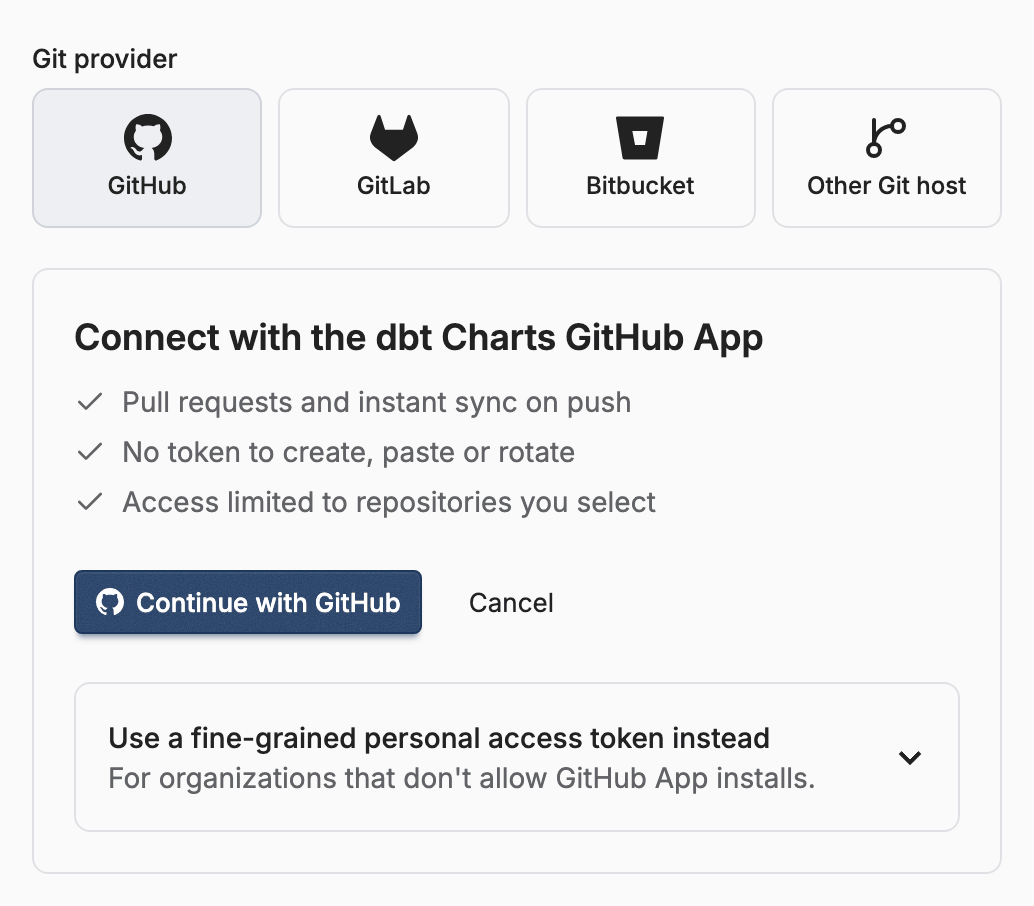
GitHub App (recommended). Connecting starts in Cloud and finishes on GitHub. You authorize the dbt Charts GitHub App, and Cloud then asks GitHub (as you, right then) which repositories you can reach. It offers only the ones GitHub says you administer, and connects the one you pick. Nothing about that answer is stored: every connection re-asks. Once connected, every push syncs automatically via webhook.
Two things follow from letting GitHub decide:
- Admin on the repo is the requirement. Write access is not enough. If a repository you expected isn't offered, you don't administer it on GitHub; ask a GitHub admin for that repo, not a Cloud admin.
- Cloud can't widen an installation. Which repositories an installation covers is chosen on GitHub, by someone who administers the account. If the App isn't installed yet, or covers the wrong repositories, Cloud sends you to GitHub's own install/configure page and picks the flow back up when you return. If you can't install it yourself, GitHub turns your install into a request for an account owner to approve; come back and connect once they do.
GitHub personal access token. For organizations that don't allow GitHub App installs. Pick the GitHub tile, expand Use a fine-grained personal access token instead, and paste the repository URL and a token; see Personal access token below.
GitLab. Pick the GitLab tile on the New project page and paste the repository URL and an access token; see GitLab below for which token to create.
Bitbucket. Pick the Bitbucket tile on the New project page and paste the repository URL and a repository access token; see Bitbucket below.
Other Git host. A repository can also be connected by its plain HTTPS URL,
with no App install. Pick the Other Git host tile on the New project page. For a private
repository, enter a username and a password or token (from the CLI,
dct cloud project connect git with --git-username and --git-password). The credential needs
write access: Cloud pushes your edits to the dbt-charts/<project> branch of
the repository. Credentials in the URL itself and non-HTTP schemes are
rejected, and syncing is by periodic poll or an on-demand sync rather than push
webhooks.
One GitHub installation can serve several dbt Charts organizations without sharing anything between them: an org only ever sees the repositories its own members connected. A repository can back more than one project in the same org; each project pins its own work branch, so distinct projects on the same repo are distinguished by branch, never by repository alone.
Personal access token
Some GitHub organizations don't allow third-party App installs. For those, the GitHub tile also offers a fine-grained personal access token. Cloud opens pull requests with it, as with the App, and registers a push webhook on the repository with it, so a push syncs within seconds. A daily reconcile picks up any delivery GitHub drops.
Create the token under Settings › Developer settings › Fine-grained tokens on GitHub:
- Resource owner: the account or organization that owns the repository. An organization that requires approval for tokens must approve it first.
- Repository access: Only select repositories, and pick the one repository. Metadata read-only is added automatically.
- Repository permissions: Contents: Read and write, Pull requests: Read and write and Webhooks: Read and write.
Cloud uses the webhook permission to register that push webhook, and removes it when you delete the project or point it at another repository.
Paste the repository URL (the HTTPS one from Code) and the token into Cloud;
Cloud signs in as x-access-token, so there is no username to enter. Cloud checks
at connect time that the token can push, read pull requests and list the
repository's webhooks. GitHub doesn't report a token's permissions, so a token
without Pull requests: Read and write only fails when the first pull request
opens, with a message naming the missing permission.
Fine-grained tokens expire, after at most 366 days, and belong to the account that created them; see Replacing a token.
GitLab
The GitLab tile connects a repository on gitlab.com with an access token. Self-managed GitLab is not covered by this tile; use Other Git host.
Whatever token you use needs the api scope and the Maintainer role on the
project. Cloud checks at connect time that the token can push, has the api
scope, and can manage the project's webhooks, and rejects one that can't.
Maintainer is what lets Cloud register a push webhook on the project, so a push
to the repository reaches Cloud within seconds.
Cloud opens merge requests for the work branch like pull requests on GitHub: a merge request opens as a draft while a board fails to compile, and goes ready once every board compiles.
| Token | Works | gitlab.com plan | Owned by | Expiry |
|---|---|---|---|---|
| Service account (project or group) | Yes, recommended | Free and up | Not a person | Can be none |
| Project access token | Yes | Premium and up | The project's bot | Up to 365 days |
| Group access token | Yes | Premium and up | The group's bot, for the whole group | Up to 365 days |
| Personal access token | Yes | All | A person | Up to 365 days |
| Deploy token | No | All | Read-only, no API |
A service account is the recommended choice: it is not tied to a person, so the
connection keeps working when people leave, and it is free on every GitLab plan.
A project service account is created by a project Maintainer under Settings
› Service accounts; a group service account needs an Owner of the top-level
group. Add it to the project with the Maintainer role, create a personal access
token for it with the api scope, and paste that token into Cloud.
Bitbucket
The Bitbucket tile connects a repository on bitbucket.org with a repository access token. Bitbucket Data Center is not covered by this tile; use Other Git host.
Create the token under Repository settings › Security › Access tokens in the repository, and give it these permissions:
- Repositories: Write
- Pull requests: Write
- Webhooks: Read and write
Bitbucket shows the token only once, so copy it before leaving the page. Paste
the repository URL (the HTTPS one from Clone) and the token into Cloud; Cloud
signs in as x-token-auth, the username Bitbucket requires for these tokens, so
there is no username to enter. Cloud checks the token when you connect, and
rejects one that can't manage webhooks. Webhooks: Read and write is what lets
Cloud register a push webhook on the repository, so a push to it reaches Cloud
within seconds.
A repository access token belongs to the repository, not a person, so the connection keeps working when people leave, and it is available on every Bitbucket Cloud plan. It only works for the repository it was created in. Bitbucket app passwords no longer work.
Cloud opens a pull request for your edits as on GitHub: it opens as a draft while any board fails to compile and is marked ready once every board compiles.
Replacing a token
When a token expires or loses access, syncing stops and the project's Settings → Git page says so. Create a new token with the same permissions and paste it under Settings → Git → Edit; leaving the field blank keeps the saved token.
Disconnecting GitHub
Disconnecting GitHub (via Settings → General → Overview → Disconnect all repositories, beside the org's project list) unbinds every project in the org from its repository; the projects themselves are not deleted. Their git data, branches, and dashboard history are preserved, and so is the repository URL on each project.
The GitHub App stays installed: it belongs to the GitHub account, and other dbt Charts organizations may be using the same installation. Uninstalling it is done on GitHub, and that disconnects every org at once.
After disconnecting you can:
- Reconnect: connect each project again from its Settings → Git page. There is no automatic re-link: reconnecting re-asks GitHub whether you still administer that repository, which is the point.
- Delete a project from the bottom of its Project settings page. This removes its dashboards and Cloud's git data, and cannot be undone. Cloud also removes the push webhook it registered. The work branch and any open pull or merge request stay in your repository for you to close.
Create a project
A project binds one repository (or one subdirectory of it) to a set of dashboards. Org admins create them; a project binds a repository to the whole org, so the tier matches what the action does.
GitHub App (two-step). Step one hands you to GitHub, which reports back the
repositories you administer; pick one. Cloud then reads that repo's default
branch and tree to pre-fill the form: the project name and slug derive from the
repository name, and the folder path is inferred from the location of your
dbt_charts.yml (or charts/ directory) in the tree. You can edit the
pre-filled values before saving.
GitLab, Bitbucket, GitHub personal access token, and Other Git host (one step). Paste the repository URL and the credential on the tile's form and fill in the fields below yourself; nothing is pre-filled.
The fields are:
- Name and slug: the slug becomes part of the project's URLs.
- Repository: the GitHub repo you picked, or the URL you pasted.
- Folder path (optional): where the dbt Charts project lives inside the
repo, for example,
data/dashboards. This is what makes monorepos work: several projects can share one repo with different folder paths. - Upstream branch: the branch your team merges to (your repo's default branch if left blank on GitHub). It must exist. Cloud treats it as pull-only: Cloud never commits to it directly.
- Work branch (optional): the Cloud-owned branch where edits made in
Cloud land. Left blank, it is
dbt-charts/<slug>, ordbt-charts/<slug>-2,-3and so on if that name is taken. A name you choose must not already exist on the remote. Cloud creates it. Changes reach your upstream branch the same way any change does: through a pull request, which Cloud opens and keeps updated for you.
On creation Cloud runs a first sync: it fetches the default branch, registers
every dashboard in charts/, and discovers the source names your YAML
references. If the sync fails (bad branch, unreachable remote), nothing is
half-created; fix the issue and try again.
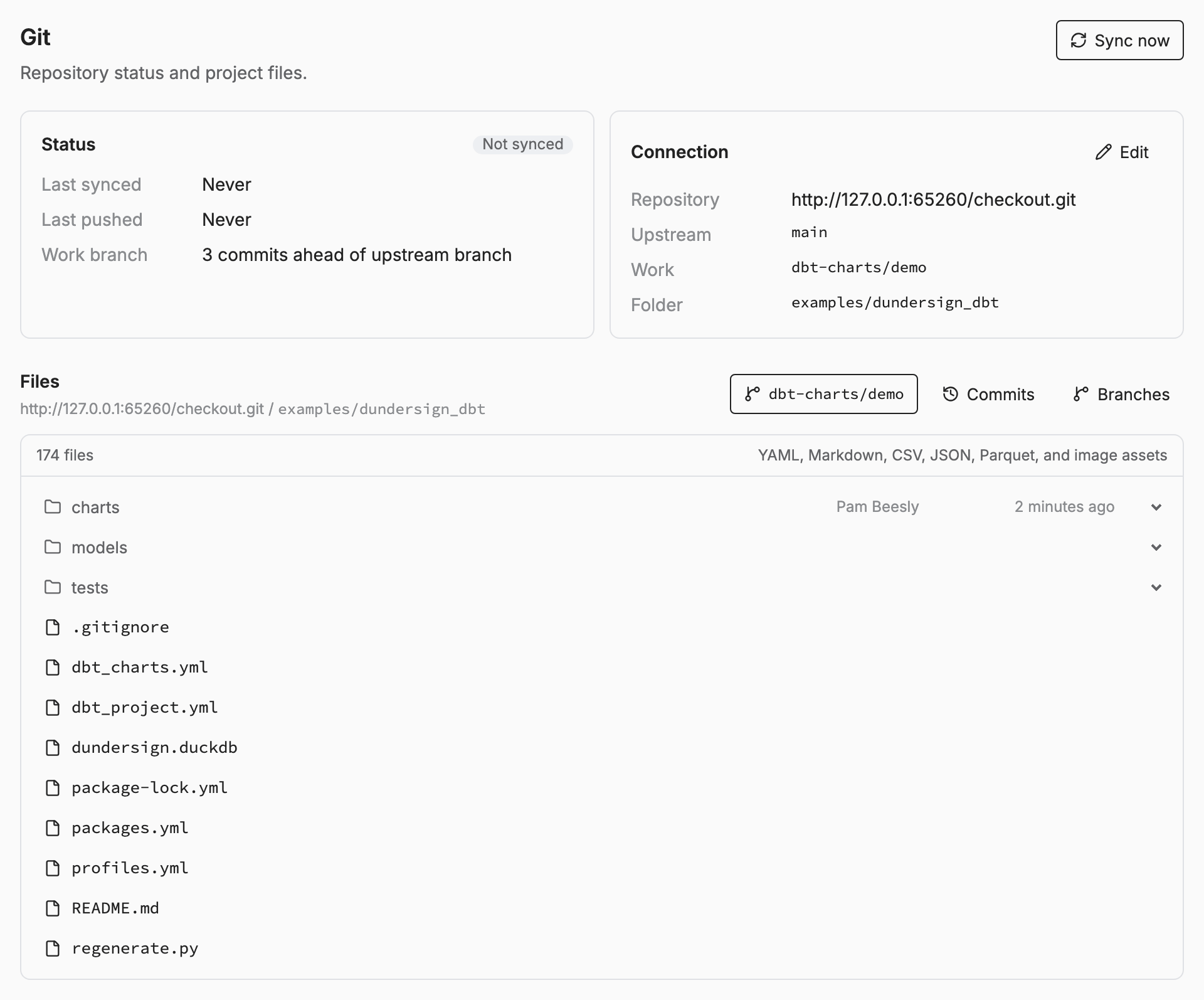
The project's Settings → Git screen tracks the connection from here on: when it last synced and pushed, the repository and branches, and a file browser over exactly what Cloud sees.
Connect your warehouse
Dashboards name their sources in YAML (source: warehouse); Cloud maps each
name to an org-level warehouse connection. After the first sync, an admin is
prompted to map any unmapped sources; create a connection (PostgreSQL,
Snowflake, BigQuery, Redshift, Databricks, or Trino), test it, and pick the sources
it serves.
The full flow, per-warehouse fields, and security notes are on
Data connections.
What you'll see
Once a project has a synced repo and mapped sources, its dashboards are live:
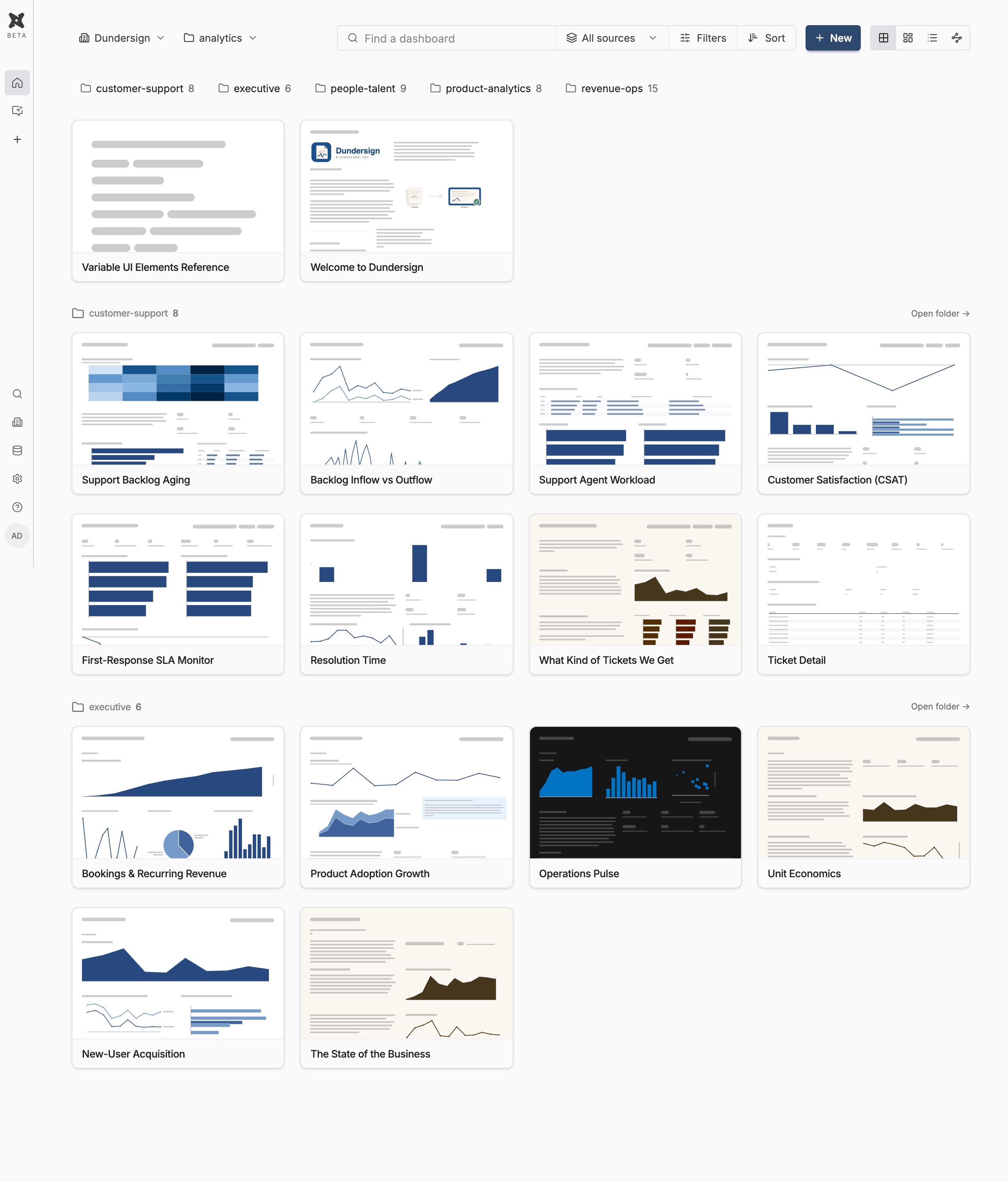
- Dashboards track git. The dashboard list is exactly the board files in
charts/on the synced branch. - A push is not a publish. Your commit goes live on the next sync, which
a GitHub, GitLab, or Bitbucket project starts within seconds of the push
and an Other Git host project only picks up on an hourly sweep.
dct cloud
  project sync
(or Sync now on the Git settings screen) publishes right away, anddct cloud boardsproves it landed: a board you edited gets a laterRENDERED_ATand a differentCOMMITonce its re-render finishes. See the git workflow. - Edits made in Cloud land on the work branch, visible immediately to
the team and mergeable into the default branch via the rolling pull
request. Dashboards under
_drafts/stay in a private working area until promoted; see access control. - Branch previews: board URLs gain a branch scope (
/b/<branch>/…) to view any branch's version; see the git workflow. - Freshness is governed by refresh policy; see Refresh.
Related
dct cloud: every step on this page from the terminal- Data connections: warehouse types, testing, and source mapping
- Access control: who can see and edit what
- Refresh: keeping dashboard data current
- AI Copilot: tuning what the project's chat panel knows