Claude & ChatGPT connector (MCP)
dbt Charts Cloud
This page describes dbt Charts Cloud, the hosted
product — these features are not part of the open source dct
engine.
This is the main way to use dbt Charts from an AI assistant. dbt Charts Cloud
is a remote MCP server: paste one URL, https://dbtcharts.com/mcp, into
Claude or ChatGPT and chat with your boards and your warehouse from there:
find a board, read what it shows, run the queries behind it, and have the AI
draw new charts inline, all signed in as you, with your own permissions.
It works in the ordinary Claude and ChatGPT apps (web, desktop, and mobile).
You don't need a coding agent such as Claude Code or Codex, a git checkout,
or the dct CLI: there is nothing to install, and nothing runs on your
machine.
By default the connector serves every organization you belong to, including ones you join later, through that one URL. You add it once, not once per organization or project: search spans every project you can reach in those organizations, and each call is still checked against your access to the specific project and data source it touches. You can limit it to specific organizations on the consent screen, and change that later without reconnecting.
This page walks the whole flow: connecting, what the connector can do, what the consent screen grants, and how to see, change, and remove access later.
Looking for dct mcp serve?
The local MCP server that ships with the dct CLI is a different thing,
for a few narrower cases such as an editor agent working on files in a
local checkout. CLI and MCP for AI assistants
compares the options.
Connect from Claude
- In Claude, open Settings → Connectors and choose Add custom connector.
-
Name it (for example,
dbt Charts) and paste your server URL: your Cloud origin plus/mcp, for examplehttps://dbtcharts.com/mcp.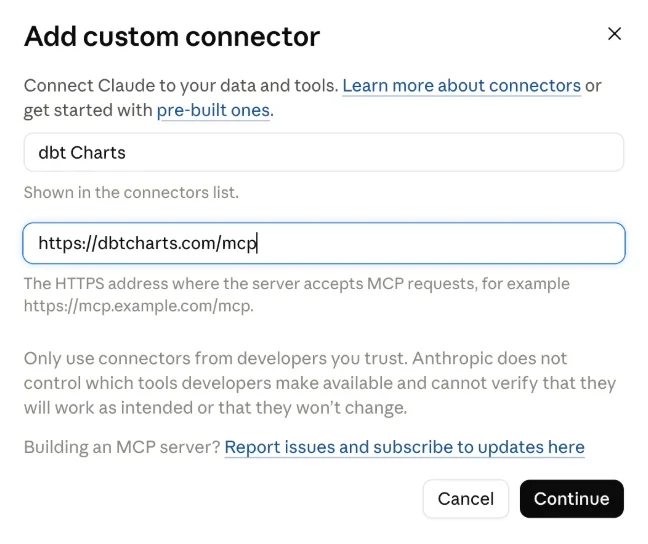
-
Choose Continue. Claude discovers the sign-in flow on its own, with no client ID or secret to fill in. When you start from Claude Desktop, your browser first opens claude.ai asking Finish connecting a connector?; choose Continue connecting. You'll then be sent to dbt Charts Cloud to sign in (if you aren't already) and to the consent screen described below. Approving returns you to Claude.
- Back in Claude, open the connector's Tool permissions and switch both groups from Needs approval to Always allow. Claude starts every tool of a new custom connector on Needs approval, which asks you to confirm each call. Every tool here is read-only, so allowing them is safe.
On a Claude Team or Enterprise plan, only an organization owner can add a
custom connector. If Add custom connector is disabled for you, ask an
owner to add https://dbtcharts.com/mcp for the organization. It then
appears in your connector list with a Connect button, and you sign in to
dbt Charts Cloud as yourself from there.
Claude connects from Anthropic's cloud, not from your device, so the server URL must be reachable from the public internet. Details and plan availability are in Anthropic's own guide: Get started with custom connectors using remote MCP.
Install for your whole Claude organization
The dbt-charts Claude plugin bundles this connector with the board
authoring skills (the chart and styling references, plus chart-building
and board-replication workflows), so Claude follows them without being asked. It lives in the
public dbt-labs/dbt-charts repository, which is a plugin marketplace.
In Claude Code, add the marketplace and install the plugin by typing these two commands in a session:
For claude.ai and Cowork, an organization owner distributes it from
Organization settings → Plugins & skills. Organization sync reads only
private or internal marketplace repositories, so list the public plugin
from a private marketplace repository of your own. Its
.claude-plugin/marketplace.json:
{
  "name": "your-org-plugins",
  "owner": {
    "name": "Your IT team"
  },
  "plugins": [
    {
      "name": "dbt-charts",
      "source": {
        "source": "git-subdir",
        "url": "dbt-labs/dbt-charts",
        "path": "plugins/dbt-charts"
      }
    }
  ]
}
- Choose Add → Sync from GitHub and pick that repository.
- On the Inventory tab, set
dbt-chartsto Installed by default (members can turn it off) or Required. - In Organization settings → Connectors, add
https://dbtcharts.com/mcp. A plugin's availability doesn't add its connector; each member then connects it and signs in to dbt Charts Cloud as themselves.
Anthropic's guide covers the rest: Manage plugins for your organization.
Connect from ChatGPT
- In ChatGPT, open Settings → Connectors and turn on Developer mode if you haven't already.
- Choose Create connector (or Add connector) and paste your server
URL: your Cloud origin plus
/mcp, for examplehttps://dbtcharts.com/mcp. - ChatGPT registers itself as a client automatically (no client ID or secret to fill in) and sends you to dbt Charts Cloud to sign in (if you aren't already) and to the consent screen described below.
ChatGPT registers through anonymous dynamic client registration (DCR) rather
than Claude's client ID metadata documents. With that mechanism the app names
itself, so the consent screen marks the name Unverified name beside the
site your browser returns to after you approve. Continue only if that is the
site you came from (for ChatGPT, chatgpt.com).
What the connector can do
The connector exposes nine tools. Hosts decide when to call them; this is what each one does and what it's allowed to touch:
| Tool | What it does | Checked against |
|---|---|---|
search_files |
Finds boards by name, title, or notes across every project you can reach, or lists all of them when no text is given. With kind, searches a project's meta.yml files, dbt models, or config files instead and returns the matching lines |
Your board access for boards; project membership for other files |
read_file |
Reads one file from a project, such as a meta.yml or a model's schema.yml |
Your board access for a board file; any other file is read as a project member. A dbt profiles.yml outside the board folders is never shown |
describe_board |
Lists a board's charts, queries, and variables | Your board access |
render_board |
Renders a stored board, or a whole board of YAML the host authors on the fly | Your board access, or your query permission on any connection the YAML touches |
execute_sql |
Runs a board's named query, or direct SQL, against a connected source | Your query permission on that source |
list_skills |
Lists dbt Charts' authoring guides (board-building workflows, chart-layout patterns) | Nothing when no project is named. Naming a project also lists that project's own skills, and needs your access to that project |
get_skill |
Reads one skill's full guide by name | Same as list_skills |
list_diagnostic_codes |
Lists the error and warning codes a render can report, optionally by level | Nothing; the registry is the same for everyone |
get_diagnostic_code |
Explains one diagnostic code and how to fix it | Nothing |
execute_sql returns its rows to the AI as CSV bounded at about 25,000 tokens.
The widget you see shows at most the first 50 of those rows. The tool has no row-limit
argument: the AI writes LIMIT and OFFSET in the SQL, and a result that was
cut says so.
Each board result from search_files or describe_board names its project's sources:
the data sources you may query there, each with its SQL dialect (or its type,
when the dialect is only known at run time). A source you have no query
permission on is left out. When the project has a default source, it is marked
default: true and the AI may omit source. A failed execute_sql names
the source it ran on.
Every call to these nine tools is read-only: queries are statement-guarded,
row-capped, and time-limited, and no tool writes to your project. The connector
serves read_file but not write_file, apply_patch, move_file, or
delete_file. The
connector asks for no administration scope: those are the scopes the Cloud API
requires to change members, project settings, and warehouse connections (the
ones dct cloud asks for), and no tool here uses them. A rendered board's widget links to the dbt Charts
Cloud editor, where saving a board (including one render_board authored
inline) happens under your own browser session, never through the connector. A
board built entirely from inline rows (a type: values query, the shape
another AI tool's results arrive in) touches no data connection at all, so it
renders even for a user whose organization has no warehouse connection
configured yet.
Boards over uploaded files cannot be authored from Claude or ChatGPT yet: an
inline render_board YAML that queries a project's file source (a
csv/json/parquet source declared in your project's dbt_charts.yml, with no
warehouse connection behind it) is refused. That data is still visible
through search_files/describe_board/render_board on any
stored board that already queries it; only an on-the-fly board over it,
authored live in the chat, is not yet supported. Build that board in the
Cloud editor or in chat inside dbt Charts Cloud itself instead.
The tool list is the same for every user. If you call a tool your permissions don't cover, you get an error naming what was denied rather than a hidden tool.
Seeing what the connector reaches
A page of search results is only a sample of your boards, so every
search_files result also says what the connection can reach:
scopelists every organization the connector may reach and, under each, its projects. A project'srefis<organization>/<project>, the same path its URL uses, so two projects with the same name in different organizations are told apart.totalis the number of boards that matched across all pages, after your board access is applied. The last page has nonext.projectsis an optional argument that limits a search to the projects you name, asrefvalues taken fromscope. Leave it out to search everything the connector reaches. A ref that names no project you can reach is an error, not an empty page, and the error does not say whether the project exists.
The consent screen
Connecting sends you to dbt Charts Cloud to approve the client. The consent screen shows which account you're signed in as and asks which organizations the connector may reach. All organizations is checked by default, and it includes organizations you join later, so an organization you create or join afterward is reachable with no reconnecting. To limit the connector, open Choose specific organizations, uncheck the all box, and check only the organizations you want; it then reaches just those, and a new organization stays out of reach until you reconnect and add it. When you reconnect, the screen starts from the current choice. The shared demo organization is never listed, and the connector cannot reach it.
Below the organizations, the screen lists what the connector will be able to do:
- View your boards and the data they show.
- Run SQL directly against your connected warehouse, marked Sensitive.
Running SQL reaches your data directly, even though nothing it returns is written anywhere. Approve a connector the way you'd approve any tool that can see your data. Approve and connect grants both scopes listed; Cancel grants nothing. If a connector you connected earlier listed administration scopes, it keeps them until you disconnect it under See and revoke access below and connect again.
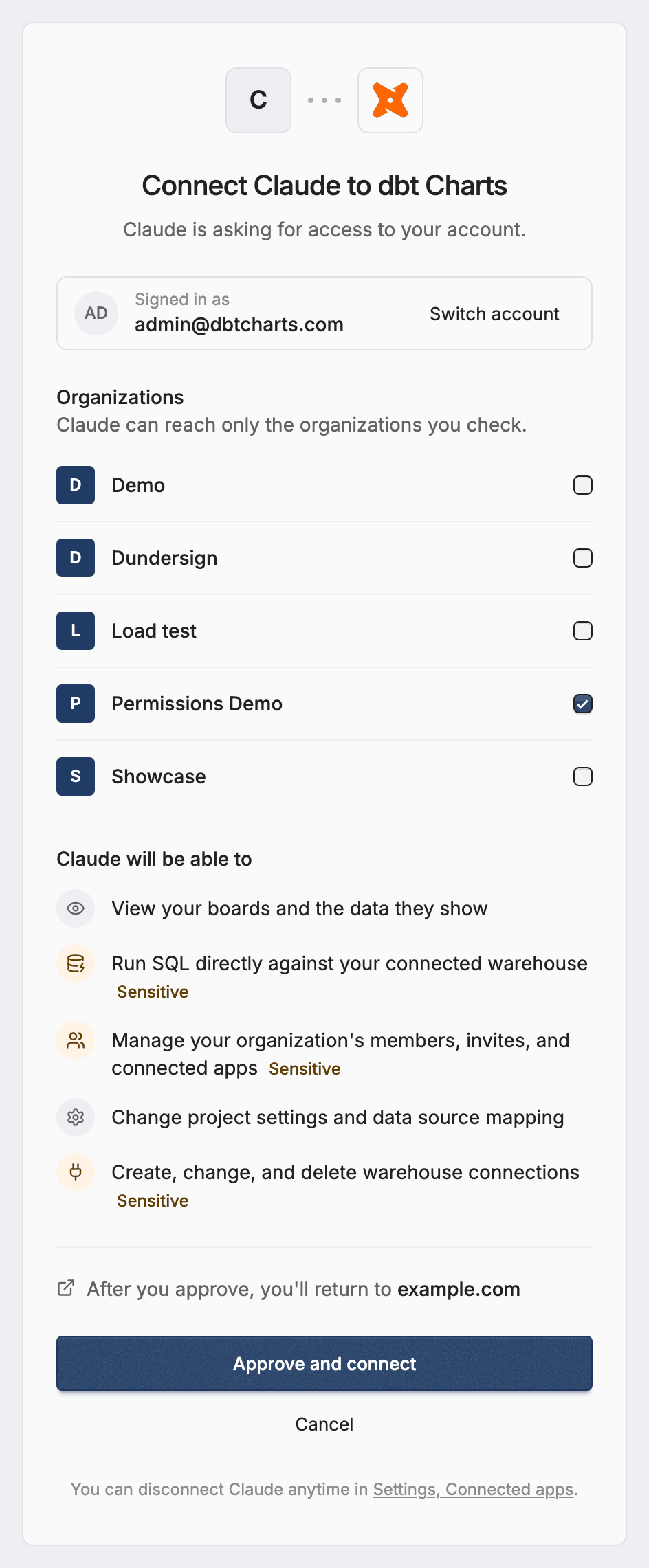
What the connector may access
The scopes you grant are a ceiling, never a widening. A connector acting for you can reach at most what you can already reach in dbt Charts Cloud: each call re-checks your own access grants against the specific project and source it resolves to. Granting the warehouse-query scope to a user who doesn't hold query permission on a source grants nothing on that source.
Queries the connector runs are attributed in your warehouse's job history with opaque per-user and per-request labels, so an administrator can answer "who ran that query" without any personal data appearing in warehouse metadata.
See, change, and remove access
In dbt Charts, open Account Settings → Connected Apps. It shows one card for each client with active access to your account, whether Claude, ChatGPT, or anything else you've authorized, with the organizations it reaches, the scopes it holds, and when its token was issued.
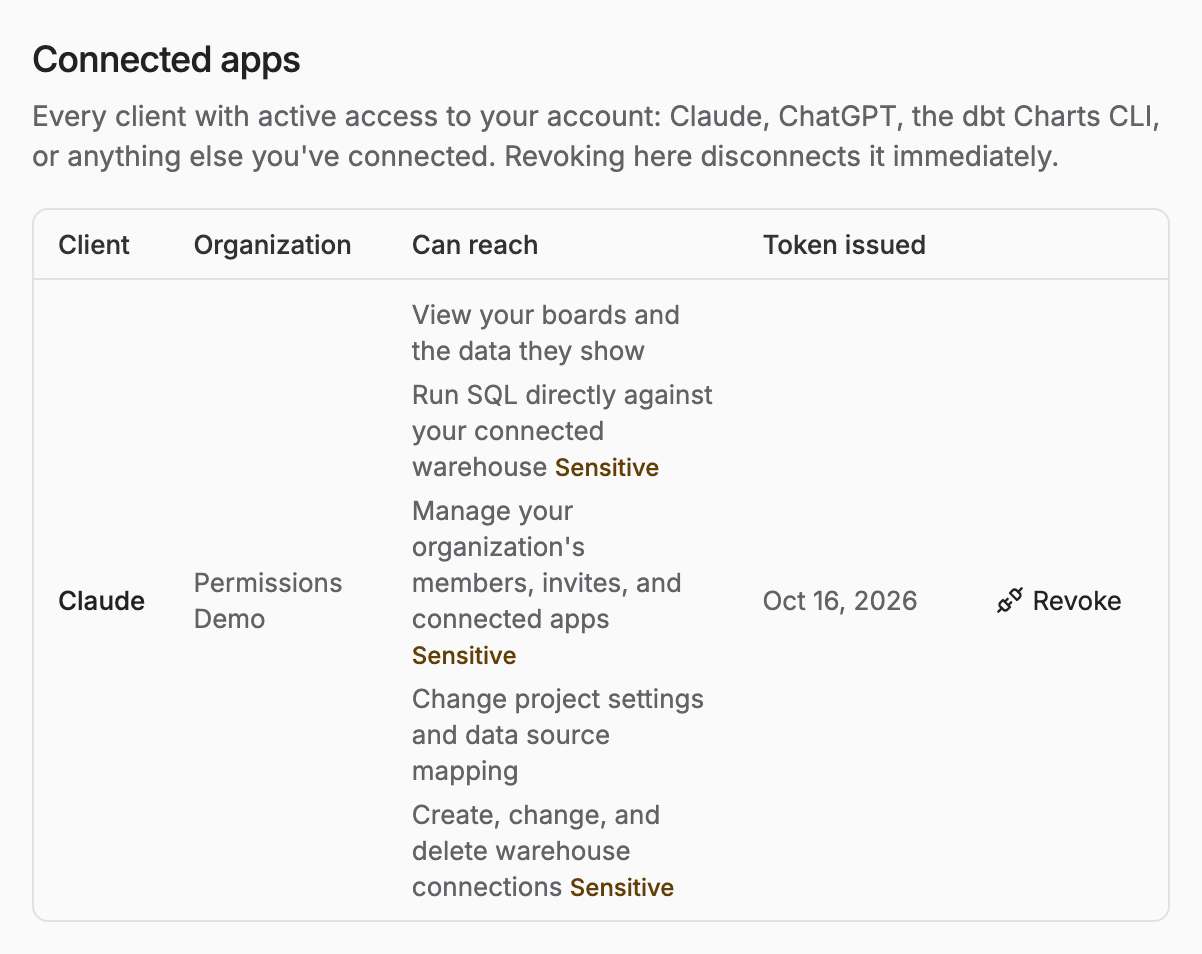
Edit organizations changes which organizations a client reaches: all of them, including ones you join later, or only the ones you check. The change takes effect on the client's next call, and you don't reconnect or reauthorize anything. The scopes stay as you granted them.
Disconnect removes a client from every organization at once: its tokens are invalidated at that moment, and its next call fails. Reconnecting is the same paste-and-consent flow from scratch.
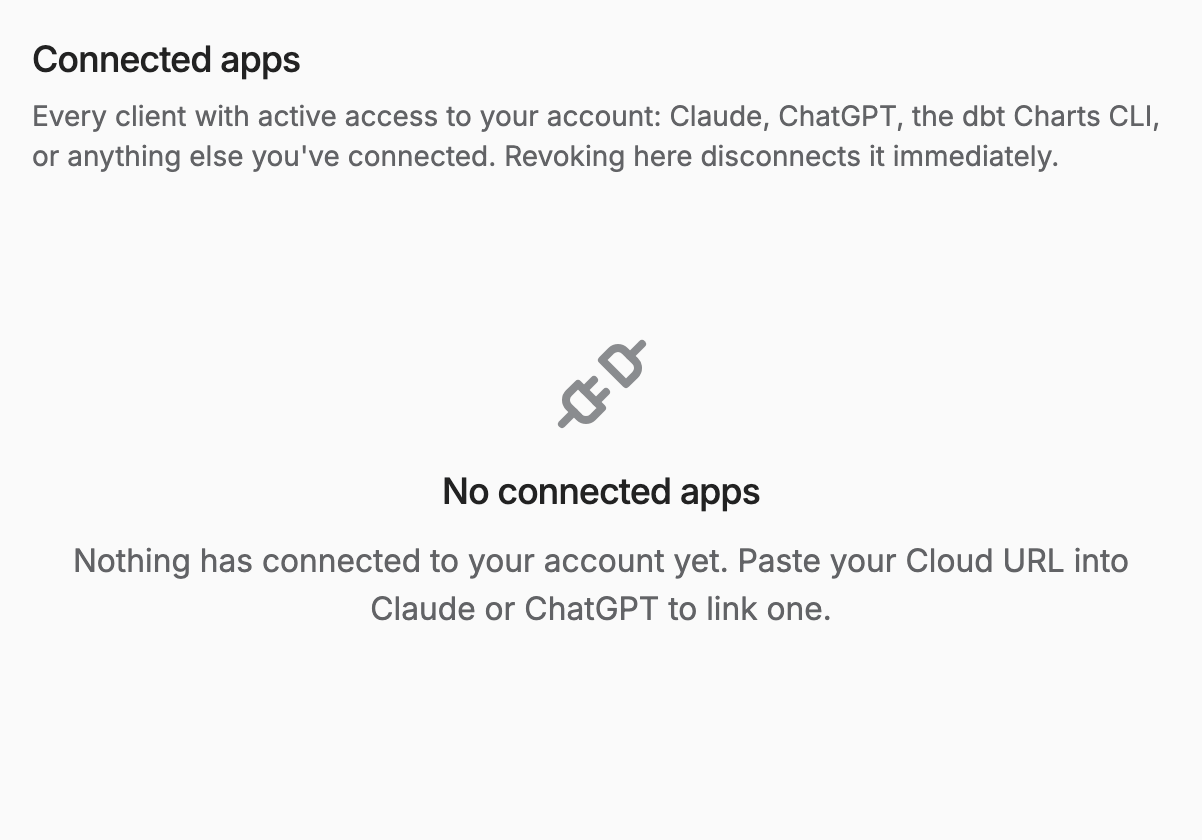
Related
- Access control: the grants every connector call is checked against
- CLI and MCP for AI assistants: when to use the local CLI/MCP instead
- Data connections: connecting the warehouse sources queries run against